
Building a Cohesive Icon System
How to create icons that look intentional together. We cover grid systems, stroke weights, and the small details that make icons feel like they belong in the same family.
Why Consistency Matters More Than You’d Think
You’ve probably seen icon sets that feel off. The icons don’t look like they belong together — some are thick, others are thin. Some have rounded corners, others are sharp. Your eye catches it immediately, even if you can’t name exactly what’s wrong.
That’s what we’re solving. When you’re designing an icon system for a website or app, consistency isn’t just about aesthetics. It’s about creating visual language that users understand. Icons that follow clear rules feel intentional. They build trust. They work harder for your interface.
We’re not talking about making everything identical. Good icon systems have personality. They just have it in a structured way. The difference between a scattered collection and a real system? That’s where the magic happens.

Start With a Grid Foundation
Every cohesive icon system starts the same way — with a grid. Not just any grid, but one you’ll actually stick to. Most designers use 16px, 24px, 32px, or 48px base sizes. Pick one that fits your product.
Here’s what matters: your grid becomes the skeleton. If you’re working at 24px, every icon fits within that square. Your stroke width, padding, and internal spacing all reference that same grid. When you scale to 48px, everything doubles proportionally. That’s the consistency right there.
The 2px rule: If your base is 24px, use 2px stroke weight. At 48px, bump it to 2px still (the scaling handles it). This keeps proportions identical across sizes.
Don’t eyeball it. Literally draw grid lines in your design tool. Snap everything to them. It’s tedious for maybe 20 minutes, then it becomes automatic. Your icons will align perfectly to this grid, creating that cohesive feeling users recognize immediately.

Stroke Weight Is Your Voice
Want to know the fastest way to spot an inconsistent icon set? Varying stroke weights. It’s like someone used different pens for different drawings. Your stroke weight is basically your system’s personality.
If you’re designing outlined icons (not filled), commit to one stroke width. 1.5px, 2px, maybe 2.5px. That’s it. Don’t mix. We’ve seen designers start with 2px, get tired, switch to 1.5px halfway through. Don’t do that. Your users will notice the shift, even subconsciously.
The stroke weight also affects how your icons feel at small sizes. Too thin and they disappear at 16px. Too thick and they look chunky at 48px. Test your chosen weight at multiple sizes before committing to 50+ icons. This saves you hours of rework later.
For filled icons, this translates to shape weight and internal detail thickness. Same principle — be consistent, be intentional.
The Details That Hold It Together
Consistency isn’t just about big choices. It’s the small decisions that make a system feel polished. Let’s talk about the details everyone overlooks.
Corner Treatment
Are your shapes rounded or sharp? Pick one approach. All rounded corners, all sharp corners, or a consistent radius like 2px everywhere. Mixing creates visual chaos.
Padding & Breathing Room
Every icon needs internal padding. If your grid is 24px, maybe 2-3px padding around the edge. This prevents icons from feeling cramped and keeps them balanced within their space.
Stroke Endings
Rounded caps or flat ends? You’ll see this in lines and curves. Decide once, apply everywhere. Rounded feels friendlier. Flat feels more technical.
Visual Weight
Some icons are naturally heavier (solid shapes) than others (thin lines). Balance this by adjusting internal details. A heavy icon might need less internal detail. A light one might need more.
These aren’t arbitrary choices. They’re the rules your system follows. When someone uses your icons, they’re trusting that every icon was designed with these same principles. That trust translates to a better product experience.

Testing Your System Works
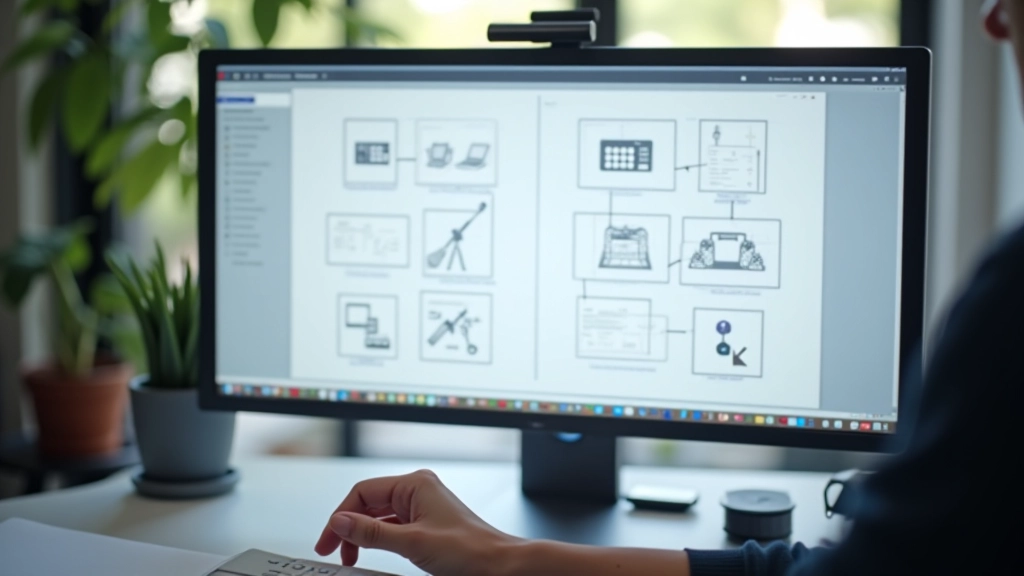
Before you finalize 50 icons, test 5. Export them at different sizes. Use them in a real interface mock-up. Look at them on screen, not just in your design tool. This is where you catch issues.
You’ll probably notice things at actual size that looked fine at 100% zoom. Maybe a detail is too thin and disappears. Maybe the padding feels off. Maybe the stroke weight looks heavier or lighter than you expected. Fix these now, while you’ve only designed 5 icons, not 50.
Create a test file with your icons at multiple sizes. Put them next to each other. Do they feel like a family? Are there any outliers that don’t belong? Trust your instinct here — if something looks wrong, it probably is.
This step saves massive time. You’re establishing your rules early, before muscle memory makes you ignore inconsistencies. Once your system feels solid, the rest flows much faster.
Naming Conventions Keep Things Organized
You’ve got your grid. Your stroke weight is locked in. Now comes the part nobody gets excited about but everyone needs — naming your icons. This matters more than you’d think.
Consistent naming means developers can actually use your system without constantly asking what something is called. It’s the difference between `icon-arrow-right` and `right-arrow` and `arrow-pointing-right`. Pick one format and stick to it.
Use simple, descriptive names. No abbreviations unless they’re obvious. `home` not `hm`. `settings` not `prefs`. When you export to a library or component system, good names make implementation so much faster. Developers aren’t hunting through your files guessing what something does.
Group related icons with prefixes. `arrow-up`, `arrow-down`, `arrow-left`, `arrow-right`. `social-twitter`, `social-linkedin`, `social-facebook`. This organization pays dividends when your system grows to 100+ icons. You’re not just creating a set of icons — you’re creating a system that scales.

Your Icon System Is an Investment
Building a cohesive icon system takes time upfront. You’re not just drawing 50 quick icons and shipping them. You’re establishing rules. You’re making decisions that affect how your entire product looks and feels. That’s real work.
But here’s what makes it worthwhile — consistency compounds. Every new icon you add becomes easier because you’re following established rules. New designers joining your team don’t need to reverse-engineer your style. They’ve got documentation. They’ve got a system. They can contribute immediately.
Your users benefit too, even if they don’t realize it. Icons that look intentional and cohesive make an interface feel polished. They communicate clearly. They don’t distract. That’s what a real icon system does.
Ready to Build Your System?
Start with your grid. Choose your stroke weight. Define your rules. Test with 5 icons before you commit to 50. You’ll know immediately if the system works.
Related Articles

Decorative Elements That Enhance, Not Distract
Balancing visual interest with usability. Learn when illustrations add value and when they get in the way.

Choosing Your Illustration Style
Flat design, outlined, 3D isometric — we break down the most popular styles and when to use them.

Placement and Spacing Fundamentals
Icons and illustrations look good when they breathe. This guide covers whitespace and alignment principles.
About This Article
This article is informational and designed to help you understand icon system design principles. The techniques and approaches discussed are based on common practices in design and illustration. Your specific implementation may vary depending on your project’s unique needs, design software, and team workflow. We recommend testing these principles in your own work and adapting them to what works best for your product and audience.